

Hard Disk Drive (HDD) or Solid State Drive (SSD) is the main storage unit of a Computer. When a data is copied to a HDD/SSD it is stored to tiny areas in its surface. So, even a minute damage or dirt in that area can render that data unreadable. By default, HDD/SSD marks such area/sector as bad, tries to read and copy the data (reallocate) to a spare area first and then redirects all access to that bad sector to the spare area. As such that bad sector cannot be accessed even by a complete drive format. While it may sound good since this process doesn’t require user action, for drives with constantly increasing bad sectors, it can cause serious trouble because the user gets ultimately notified when very little spare area is left for reallocation and a very little time (about 24 hours) to backup the data. Moreover, problems resulting from Weak sectors, High temperature, Incorrect power, Mechanical shock, Vibration are not necessarily notified by the HDD/SSD.

Hard Disk Sentinel, in contrary runs in background and monitors the status and health of HDD/SSD by constantly monitoring the S.M.A.R.T. status of the drive(s), not by just checking S.M.A.R.T. attribute thresholds and values like most similar software and reports about even slightest errors/failures as soon it is detected.
 Problem Detected by Hard Disk Sentinel Professional |
 Hard Disk Sentinel Professional Detects Problem in S.M.A.R.T |
Moreover HD Sentinel allows you to run tests on the HDD/SSD [Short Self Test, Extended Self Test, Random Seek Test, Surface Test] that allows the user to investigate the problem in more detail and repair the problem [reallocating bad sectors] in a faster pace or, recommends proper action to take on weak sectors and related problems. The user can also send test report to the developer who is helpful enough to analyze the report and suggest proper action to take on the faulty drive. In case of bad sectors, if the drive is found to be stable after performing tests on it, the user may like to clear the reported error so to get notified by HD Sentinel for further errors.
 Hard Disk Sentinel Professional Boxshot |
Hard Disk Sentinel Professional Features & Specifications
Installation
- The software can be downloaded as an archive [hdsentinel_pro_setup.zip ; 12.637 Mb] containing the executable [hdsentinel_pro_setup.exe ; 13.659 Mb] digitally signed in the same of the lead developer Janos Mathe. Portable version is also available.
- Installation is smooth and fast. Desktop and Quick-Launch icons are created by default.
Supported Languages
The software is multilingual. More than 10 different languages are supported e.g. Bulgarian, Czech, English, Hungarian, Italian, French, Romanian, Russian, German, Chinese, Chinese (traditional), Spanish, Portuguese-Brazil, Dutch, Greek.
Status Window
After launching the application a ‘status window’ is has been displayed in the upper right corner on top of all windows. It shows the models, temperature and condition values of installed hard disks. Upon left-clicking on the status window, the list of logical drives are displayed as a quick overview about free space available on each disks. Status window can be hidden.
 Status Window of Hard Disk Sentinel Professional |
Tray Icon
HD Sentinel also shows a tray icon that shows the current temp of the disk(s) and blinks with a red-cross if a disk has low health. Mouse hovering on it shows the current status of the hard disk, including its health, temp and hard disk model number.
 Tray Icon of Hard Disk Sentinel Professional |
Disk Icon
The software can integrate to Windows explorer and can display the status of these disks (health status: good, acceptable and bad) and the amount of used space. Network Drive and Removable drive icons can also be modified.
 Drive Status by Hard Disk Sentinel Professional |
Graphical User Interface
The main GUI is very detailed in its description. Complete status of various component of the HDD/SSD is shown here. It is also possible to access all features and functions by using the main menu or the quick buttons.
 Main GUI of Hard Disk Sentinel Professional |
Temperature Monitoring
The software can monitor the temperature of the HDD/SSD and marks it according to the default or custom temperature thresholds.
 Recorded Temperature of Drive by Hard Disk Sentinel Professional |
Details of HDD/SSD
Many details of the drive is available under Information tab.
 Details of HDD/SSD by Hard Disk Sentinel Professional |
Advanced Monitoring Options
It offers some advanced monitoring options.
 Advanced Motoring Options in Hard Disk Sentinel Professional |
Tests in Hard Disk Sentinel
Hard Disk Sentinel offers an wide variety of tests that can verify and fix problems in HDD/SSD under a controlled environment.
Hardware Self TestsThe hardware self tests built in IDE and Serial ATA hard disks are the perfect solution to test the hard disk status quickly or with very high detail.
- The Short self test verifies the major components of the hard disk (read/write heads, servo, electronics, internal memory, etc). This test takes only some minutes.
- The Extended self test performs the above and it has a complete surface scan which reveals the problematic areas (if any) and forces the bad sector reallocation. It is recommended to periodically use this test to verify the disk health – especially on a hard disk with less than 100% health.
Short Self-test in Hard Disk Sentinel Professional
Random Seek Test
By this test it is possible to verify the noise level, track-to-track seek time and temperature levels of the hard disk, especially under excessive disk usage.
Random Seek Test in Hard Disk Sentinel Professional
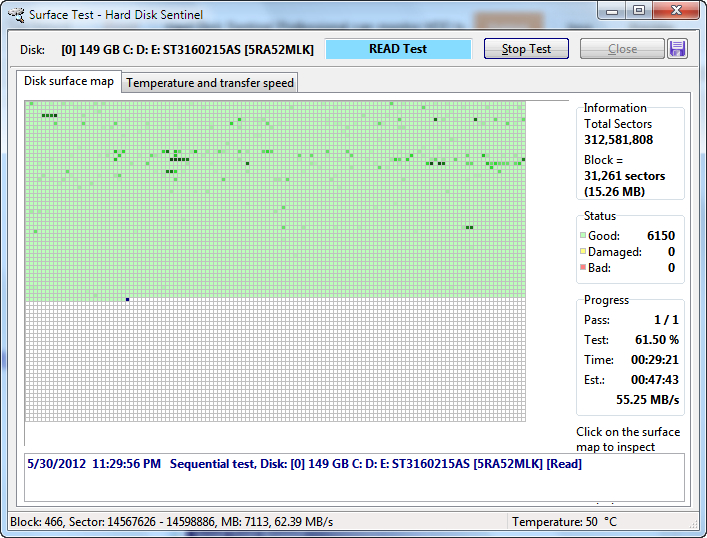
Surface Test
By using this test, the surface of the hard disk can be examined with different methods.
- READ Test – Reads the disk surface to verify if all sectors are accessible and readable.
- WRITE test – Overwrites the disk surface with configurable pattern. Forces the analysis of any weak sectors and verifies any hidden problems and fixes them by reallocation of bad sectors (this is drive regeneration).
- WRITE + read test – Overwrites the disk surface with configurable pattern and then reads back sector contents, to verify if they are accessible and consistent. Forces the analysis of any weak sectors and verifies any hidden problems and fixes them by reallocation of bad sectors (this is drive regeneration).
- Read + WRITE + read test (refresh data area) – Reads stored data from each blocks, writes back the contents and finally reads the information and compare with original contents. By the extensive test, an additional write cycle is used before writing back the contents to improve the efficiency of the error correction (drive regeneration).
- Reinitialize disk surface – Overwrites the disk surface with special initialization pattern to restore the sectors to default (empty) status and reads back sector contents, to verify if they are accessible and consistent. Forces the analysis of any weak sectors and verifies any hidden problems and fixes them by reallocation of bad sectors (this is drive regeneration).
Surface Test (Read Test) in Hard Disk Sentinel Professional


Reports
- HD Sentinel can be configured to send e-mail message if a failure predicted, if a hard disk is too hot or if a critical S..M.A.R.T. parameter is degraded. Also it can be used to send daily reports about the current status of hard disks.
- The user can also send test reports to developer for further help in analyzing the situation. Even in offline PC it is possible by creating the report, saving it and then sending it via a PC with internet connections.
 Test Report in Hard Disk Sentinel Professional |
Sound Alert
HD Sentinel can ring sound alerts on any incidence that needs user to take action. By default, sound alert is not enabled.
 Alerts in Hard Disk Sentinel Professional |
Automatic or Scheduled Projects
With HD Sentinel Professional various projects can be defined, that can be scheduled to execute regularly or in case of some events, for example if a decrement in HDD/SSD health is observed. It is also possible to execute two or more different projects at the same time or sequentially (run a project after the the other project is completed). The type of the project can be:
Run external application or batch file: the project will start the specified external application, internal command (for example COPY) or batch (BAT) file.
Transfer files and folders: this case the internal archiver module is used to backup files. By using this module, it is possible to configure different archiving options and create different, specific backup tasks.
Burn CD/DVD by using NERO: Hard Disk Sentinel will use NERO (TM) application from Ahead Software AG to archive the contents of any specified folder to an optical disk.
Compress files by using RAR/7-Zip: Hard Disk Sentinel can use WINRAR (TM) application from RarSoft or the free 7-Zip application as compressor.
Export registry items: the specified registry keys will be exported into a file.
Power ON Computer: Power on (start) a remote computer on local area network by sending wake-up packet to the target computer.
Power OFF Computer: Local or remote computer can be stopped (shut down) or restarted (reboot). The local computer can be sent to standby or hibernate states also.
Send files in e-mail: By this function, files (or complete folders with all files and sub-folders) can be transferred in e-mails.
FTP Transfer Files: By this option it is possible to upload files or complete folders to FTP server.
Test hard disk(s): It is possible to examine and test the hard disks by using hardware self test functions (supported by IDE and S-ATA hard disks). The disks to be tested are listed and can be selected, or it is possible to test all installed hard disks simultaneously.
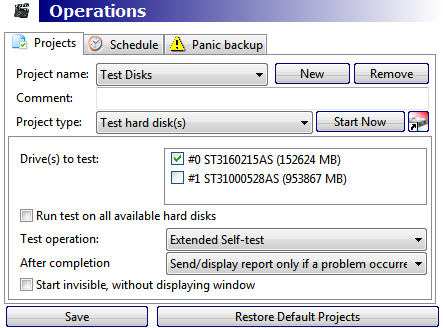 Defining Projects in Hard Disk Sentinel Professional |
Password Protection
 Password Protection in Hard Disk Sentinel Professional |
- If WebStatus is enabled, it is possible to examine hard disk status from the local or a remote computer/mobile phone/PDA by using a web browser. Optionally a password can be used to prevent unauthorized access.
- Hard Disk Sentinel can Accept remote connections from server and this way it can be used to remotely analyze hard disk problems, verify hard disk status and test hard disks.
- It can use DynDNS, No-IP or Custom Dyamic DNS service to assign a fix host name to a changing (dynamic) IP address of a computer. With this constant host name, the computer could be accessed remotely, so remote management (webstatus, remote connections) is possible.
Hot Keys are supported to access some functions of Hard Disk Sentinel.
 Hot Key Management in Hard Disk Sentinel Professional |
 Hard Disk Sentinel Professional System Impact |
System Requirements of Hard Disk Sentinel Professional
Hardware Requirements
- Pentium or compatible CPU
- 32 megabytes of system memory
- 15 megabytes of hard disk space
- One or more hard disk or solid state disk with ATA (IDE or Serial ATA/SATA II), SCSI, SAS, USB interface.
See Hardware compatibility pages for supported hard disk drives, SSD models, disk controllers and external hard disks / enclosures / adapters.
Other type of external disks (IEEE 1394 or used in NAS enclosures and connected via Ethernet) are NOT supported because the hard disk controller chip in the external enclosure does not support the detection of hard disk status (S.M.A.R.T.) information.Software Requirements
- Windows operating system (Windows 95, 98, 98SE, ME, NT4, 2000, XP, 2003, 2008, Vista, Windows 7, Windows Home Server, Windows 8) both 32 and 64 bit versions
- System administrator account (in service mode, it is possible to use without administrator rights and without even user logged in)
Note: hard disk controller drivers can also cause incompatibility problems and this case not all hard disk information may be displayed. For more information, please check the compatibility page and to download recommended drivers from the Driver Zone section.
Download Hard Disk Sentinel Professional
Hard Disk Sentinel Professional can be downloaded from the following link
http://www.harddisksentinel.com/hdsentinel_pro_setup.zip
The portable version is available here
http://www.harddisksentinel.com/hdsentinel_pro_portable.zip
The trial version has some limitations.
 Hard Disk Sentinel Professional and Trial Version Difference |
My Verdict on Hard Disk Sentinel Professional
 |
| No Problem Detected in a HDD |
- Option to shutdown PC after a disk space because most of them runs for a long time.
- Alerts user if he quits the software from tray.
- Creation of developer test report via ‘Report’ menu of the software.
Giveaway of Hard Disk Sentinel Professional
3. Optional but Important: Like the Facebook page of Hard Disk Sentinel share about it.
Giveaway will run until 7th June 23:59 Hours GMT.
Giveaway Ended.Those who haven’t won a license of Hard Disk Sentinel Professional or have missed it, please purchase it. You won’t regret.
Purchase Page of Hard Disk Sentinel
Purchase Page of Hard Disk Sentinel Professional
Purchase Page of Hard Disk Sentinel Professional Family License
Wow, HD Sentinel really looks like an in-depth piece of software. Nothing quite like that, for us geeks, to dive into an application and learn all its nooks and crannies, especially when concerning something as vital as HDD data.
Sure, some might say, you can upload to the cloud, but cloud storage is measured in (at most) tens of GBs, while HDD data takes up to several TBs. So software of this kind will stay of prime importance for many more years to come.
Thanks for the giveaway, Sujay and Janos.
Hi Sujay!
Hard Disk Sentinel is good, and probably the best program to serve the HDD of those that I know. The program covers almost all of the requirements and suggestions for programs of this type. Glad appeared possible to participate in the raffle.Count me in. Best regards!
https://plus.google.com/u/0/107572355394581975642/posts/HD5VTvJH7eD
Sujay very nice review again, I had to download the portable
trial version to try this out but found it very limited, a full
pro version trial would of been better to get a full feel for
all its features. But based on your review it sounds a very
good piece of software witch I would truly appreciate a
license if I win one.
Count me in on this one please.
https://twitter.com/owenjrgordon/status/207959318413312000
Nice software. This could help me to optimize my drive.
Thank for this giveaway and please count me in too!
Awesome review Dada. Also a great product for our HDDs.
To what I have read abt this software and from your review, Hard Disk Sentinel is definitely a must on all PCs/Laptops. I have personally encountered a dead drive and know that pain of losing data.
Appreciate if you could count me in the giveaway.
Thanks, Grr
Terrific software and a nice review. BTW I did not notice anything about the program's footprint, or did I miss something?
Thank you so much for this Giveaway.Please count me in.It is the best tool for monitoring HDDs and SSDs.I can also monitor health ,temperature and performance of my hard disk with this Single ultimate tool.Hope i win this soft.
Twitter name:-siddxxxx
http://www.facebook.com/permalink.php?story_fbid=400164183356142&id=100000004463103
regards,
siddharth
Looks like very powerful HDD-monitoring software. Thank you for the detailed review and the giveaway!
Yup !! You seemed to have missed that… Search for the phrase “System Impact of HD Sentinel is low.”
Hi,thank you for great review and contest. 25 licences is a lot of, I hope I win a one.I'm looking for this software some time. Tried it last year and was nice suprised. Many useful functions not using a lot of CPU and RAM, very good GUI. Fast HDD problem detected, temp etc. Good computer tool.
very detailed review….i understand the software and its functioning without even installing it…all thanks to your efforts in writing this review…great work Sujay…
looks like its a must have software…harddisk is the brain of every system and no-one wants to lose data….please count me in for this wonderful giveaway….thank you Sujay and Janos for organizing this giveaway….:)
Thank you so much for this Giveaway.
Thanks For campaign..
If you will be fortunate in the trial program license.
http://www.facebook.com/permalink.php?story_fbid=283691448394479&id=100003865515867
I'm very excited by your review. I've got a couple of apps that do the standard reporting on SMART status. But I've wondered many times if there's some way to get a better idea of how my hard drives are holding up. The temperature sensor is a nice touch. Also glad to see there's a portable version.
I noticed on the website you have a choice of running the program as an application or as a service. You don't see that very often!
Really appreciate this giveaway and hope I get lucky.
Thanks for giveaway awesome giveaway Sujay
this one of the best hard disk repairer, monitoring and show current status i love this HDD software
count me in thanks
https://www.facebook.com/mohammad.wasiullah.5/posts/308307602591450
count me in
Please Count me in.. Thanks for this Great Giveaway!
Hard Disk Sentinel is the Legendary HDD Inspection and also Monitoring Tool. I really need this Tool to monitor my HDD and also External HDD from any defects or something like that which can lead to malfunction unit.
https://www.facebook.com/asrielrusdyawan/posts/230709047031509https://twitter.com/asrielrusdyawan/status/208213425766137856
Hope to be the Lucky Winner!
It looks very powerful. Please count me in.
awesome review and nice giveaway……..count me in please! thanx….. 🙂
Welcome Grr…
Count me in please…
https://twitter.com/myimmortalize/status/208258872383778816
Hard Disk Sentinel Professional seems to be very good program for hard disk monitoring, definitely a keeper. Thanks for the giveaway!
Is serious, very talented and a very desired program. ETA program simply requires those who respect PC and monitors his condition.
https://twitter.com/Alex77toy/status/208264164928524288
http://www.facebook.com/alex.badn/posts/301309959959596
Excellent and detailed review. Thank you. So this is a fantastic program that would be nice to have installed on my computer. Thanks a lot for the giveaway contest. Good luck to all.
Nice Giveaway
Please Count me in…
Thanks For Giveaway
I come here after reading another review of
Hard Disk Sentinel PRO at http://www.donationcoder.com. I hope to win the giveaway here. 🙂
Thank you for detailed review and the giveaway.
It is very important to keep HDD in the healthy state and this great program does it finely, Thanks Sujay for another cool giveaway. Yours!
Shared, tweeted and liked
Comin' from DonationCoder, as there people always recommend excellent software. This time was no exception, and review is on par. Regarding Hard Disk Sentinel PRO, it would've definitely came in handy few years ago when I had sudden disk failure and almost lost my scientific papers. Since I have multi-disk setup it could be of good use right now, and this opportunity came just in the right time!
Truly generous giveaway, and I'd like to apply for it. Subscribed to your newsletter, looking forward to more reviews. Although, I'd point out that there was no need to provide “Name” for subscription, only e-mail address.
Regards.
Thanks for the in depth review Sujay. Between your review, and the (also very positive) review on donationcoder, I'm now very interested in this piece of software 🙂
Tom
It looks like a nice tool, thanks for the thorough review.
Thanks for this, thats what i was searching for, an effective monitoring software, would come handy, count me in, wish all good luck
Hi!
I've installed the trial version today and I was impressed to about how much information this program can give me about my HDDs (even the portables). I didn't know that I have a faulty SATA cable attached to one of my desktop computer's HDDs. My final word is that I'm very willing to obtain a licensed copy of Hard Disk Sentinel Professional, even to buy it!
Thanks for both, the exceptional review and this great giveaway!
please give me
Excellent software, I've been evaluating the trial and I absolutely love it. Excellent review – I particularly like the “System Impact” image. Looking forward to that Pro Lifetime License if possible! 🙂
The best part about this software is how it tracks the SMART history. Hopefully I made it in time for the Lifetime license.
Thanks for nice review and this contest. Please count me in. Hard Disk Sentinel is great HDD monitoring app.
Best regards
Thanks for visiting my site. 🙂
Great review, Hard disk Sentinel does seem to have everything you need to manage your hard drives. Please count me in
Thanks
Thank you very much for the giveaway. Hard Disk Sentinel is just awesome. I like the accurate temperature reading and email alert. I would sure love to use the Pro version as it will save my HDD just in time from failure.
Well done report! Thanks Sujay for detailed info. It would be of high utility for me here in a small comunity of Brazil to have the PRO version Giveaway. Count me please!
Very capable, extensive information & features.With the use of thresholds levels it could easilyintegrate with third party sync/recovery programs.
Brilliant!
Thanks for reviewing Sujay & thank you Janos.
Noticed your post on DC, thought I'd have a visit.
Nice blog/subscribed/followed..http://twitter.com/Bionic_/status/209776317695135746
I installed Hard Disk Sentinel SE earlier today and am very impressed with it. There is a wealth of information in the UI and I also like being able to monitor the hard drive temp in the notification tray. It's very light on resources – definitely a keeper!
Data must be protected. Thank you.
Wow, this really has a lot of valuable information.
Thanks!
Great review. Solid HDD software. Grateful to have it as a portable app too!
Thank you for this Giveaway offer. I've just finished a backup on my HDD after I got this Windows notice: “Hard drive failure imminent. BackUp now.” This would really come in handy at the right time.
cOUNT ME PLEASE
Hard Disk Sentinel Pro is the ideal software which constantly monitors your hard disk by maintaining it in healthy condition and notify if any problem is being detected.
Please consider me in this Giveaway and thanks to insightsintechnology.com for organizing such Special Giveaway Event.
Thank you! The best HDD- monitoring softwre.
Thanks for the giveaway. I am enjoying the standard version, having to keep an eye on my HDD, got 17 bad sectors, would love to win Pro.
I've been using HDSentinel for over a year, since a few hard drive deaths in a row. It's a fantastic way to keep an eye on your hard drives, as well as getting some peace of mind.
Just a wonderfull sofware !
I was very surprised to see that the last version (4) is running perfectly on my old PC which double boots on Windows NT4 and Windows 2000. Program installs and runs like a charm on both (rather old now) operating systems. My congratulations to the developper.
Regards from an old belgian developper.
Thanks for this offer-would love to win.
I use standard version and I'm very happy of this. So I want more… I want PRO 🙂
Thanks for chance to win and good luck to all!!!
I have been using HDD sentinel for years now and it's always 100% accurate in all situations.
Köszönöm
Very nice software. Only think missing is ability to have separate service, so you can run application and service same time (application would get data from service).
Én nagyon szeretem a HD Sentinel programot. Igazán örülnék, ha nyernék egy licencet.
I have used this software in a previous job and It has been an absolute asset to the business in quickly analyzing and detecting HDD problems in a quick and efficient manner
That's what I need. Thanks a lot!
I'm very excited to try out all the features of this software and recommend it to my colleges and customers.
Looks like the perfect tool for HDD/SSD etc… ! I d like to compare it to HDD Regenator and Spinrite for the correction functions… Thanks!
What a review, Sujay!
Hard Disk Sentinel seems to be a very formidable program in the business, making it is regretable that I missed the BitsDujour promo for the Standard edition several days ago. I can just enter your giveaway to pay it off but I read above that the program has multilingual feature. As a volunteer translator, I'd better exert this chance and give one slot in the drawing to others.
Thanks.
Hi!
I am a newcomer to your site, was looking for a in dept analyses of this app., very glad I've found it here.
Thank you very much for the detailed review. In fact, this is what a review is supposed to be, as after reading it, one has a clear idea of what it does, how it does it, and if one needs/wants it.
And this soft does look impressive 😮
So, I'm throwing my hat into the giveaway!
I'm looking forward to see the rest of your articles 🙂
Peace
You are right. No need for name in newsletter subscription.
Great review of a really nice program! I've used the Standard version and I'm quite impressed with everything about the software, including the extensive Help section.
I guess we've all experienced a HD failure or two in our time, unfortunately. This program is of great value in diagnosing potential problems, or just letting you keep an eye on your valuable hard drive state.
Recommended!
Hope I'm not too late to be in the running for the giveaway! Thanks!
Outstanding, detailed review of top class software.
Very, very good software!
Hard Disk Sentinel Professional is definitely a must have on every Computer so please count me in, thanks.
Regards,
Pinhead
I believe Hard Disk Sentinel is a high-quality, trustworthy utility program. I have a great respect for the creators of this product. I am pleased to have the opportunity to win the Professional version!
I've been using HDSentinel for years now and it has saved me at least from one catastrophic 3TB drive failure so far.
i have the standard edition. it's a great program 🙂
I did not read careful enough the instructions to be counted in on the draw. So here's my Guest post!
-Azaf
Thanks for the giveaway, I've been using Hard Disk Sentinal Standard for a week which I got from a giveaway and I'm starting to like it. I had similar problem, one of my external hard disk was reported having low health and turns out the cable was causing the problem.
After reading your review above , I switched to different one and the problem's gone. After performing full test HDSentinel was able to detect several bad sectors on my main hard drive. Disk and systray icons help me to monitor my hard drive right from my desktop while the sidebar can be polished and upgraded with better colour and design. HDSentinel Standard runs light and fast on my computer, and I haven't found a single bug yet until now. Thanks again for this fantastic giveaway, I would be very happy to upgrade my Hard Disk Sentinel for free so put my name in the drawing list and congratulations to all future winner.
Great program!
I've been using HDSentinel for a while now and all my HDD's seem to be still in good condition.
Thank you for the Giveaway, this is one of the few software available to monitor hard drives in RAID configuration.
It's very nice software. It can even show info on raid disks.
Very useful software.!
Software that everybody should have!
Hd Sentinel is excellent tool. I have been using since i bought new hdd for controling the health and other parameters like temp, power on time,etc… Thank you for detailed review and I am in for giveaway.
I have just started using this monitoring software and it has already helped me identify problems.An excellent monitoring tool.Thankyou
I have the standard tool which is excellent look forward to getting an upgrade to professenial to be able to use all the features
Excellent software everyone should use for peace of mind
Awsome program at a convient price. Would recommend this product to everyone.
Very good review and interesting blog. Thanks!
This could help me to optimize my drives.Please count me in too!
I wish I have this a long time ago. This is a must-have for home users.
Ran the trial version and I never thought that several of my hard disks are practically “running on toothpicks”. Thanks for this!
I've been searching all night (it's nearly 4AM here) for any solution to my 1TB sized headache! I'd love to be in on the givaway.
Thank you so much.
I don't know what else the program could tell you about the state of your hard disks, except maybe the volume name. It is also very handy for identifying individual disks.
Thank you for the opportunity to win a licence.
Most powerful hdd monitoring program i've ever seen. It has built-in hdd smart test feature which no other software has. I've been using for 5 years now.
Most powerful hdd monitoring program i've ever seen. It has built-in
hdd smart test feature which no other software has. I've been using for 5
years now.
this will help us to run our system smoothly. thanks for the offer
I heard that “Hard Disk Sentinel Professiona” is the best HD monitor on the market and would like to take a try.
I have to say, absolutely fantastic software to monitor hard drives healt and temperature and therefore keep my data safe.
I heard that “Hard Disk Sentinel Professiona” is the best HD monitor on the market and would like to take a try.
I am familiar with HD health monitoring utilities, but from the
features I have noted in Hard Disk Sentinel.
This is a far superior application.
I plan on making it a staple on my machine – and recommending it to all
my friends. For the technically
inclined, it is a remarkably full-featured tool, and for the entry-level user,
its alerts and notifications will take the mystery out of maintaining healthy
data.
Since my first HDD breakdown, I've realized the importance of monitoring your hardware, including temperatures, SMART attributes, voltages, etc. I've switched many SMART utilities until I found HD Sentinel. They were either incomplete, buggy, or lacked the design. I can handle CLI and text, but it's the GUI which makes life better 🙂
HD Sentinel was good, stable and user intuitive. Your very good review points out this in a clear way. I've used it since and it's constantly sitting in my system tray, joyfully showing me the temperature of my HDD. And I love it and wouldn't change it for anything else.
This is indeed a message participating at the giveaway, but mostly I would like it to be a big THANK YOU to the developers of this tool. I thank them first of all, for the work they've put into it, and secondly, because they publish their Standard version for people who don't have the money to buy the Pro. Thank you again.
Hello Sujay !
Oppps, sorry 🙁 I thought I DID subscribe to the newsletter!!! Dunno what happened, why it didn't work :O
Thank you for the eMail reminder, it is done now !!
Anyway, I plan to come back often to your site
Peace
What a great software! Support answered really fast.
No Problem 😉 And thanks for liking my site.
I had no time to write to the list. :(Regards.
Next time please do not make multiple comments.
Sorry, I couldn't let you count because you haven't followed the only rule of the contest.
Sorry, I couldn't count you in the contest because you haven't followed the only rule of the contest.
Sorry, I could not count you in the giveaway contest because you forgot to subscribe to the newsletter.
Sorry you can't enter the contest because you haven't subscribed to the newsletter.
Sorry you haven't subscribed to the email newsletter.
Thanks for liking my site. But I could not find your email in the subscription list. Did you used the same email address to subscribe as the one you used to post comment? Because this was the requirement for me to identify whether a person have registered or not.
Its really worth trying after reading your article. But I wonder, if this works for external PATA drives connected through USB/FireWire? PLease advise.
Yes: both PATA and SATA drives connected with special USB adapters/enclosures are fully supported, their status detected and displayed. Some older USB-IDE adapters/enclosures do not support this function, but most newer USB-IDE adapters and combo USB-IDE/SATA (and USB 3.0-IDE/SATA) adapters work well. Please check http://www.hdsentinel.com/compatibility_external_disks.php for the list of tested enclosures/adapters.
Thanks Janos for your kind reply…:)
Its good tool, After I learned to use it, it works. In return i have share an another great tool like Kernel for windows data recovery software tool to recover all over data files from window hard disk.